Secure Boot on Gentoo with shim & GRUB
Getting Secure Boot to work on Gentoo has traditionally been tricky, due to the widespread use of custom kernels and the absence of pre-signed boot loaders like those used by the mainstream binary Linux distributions. Since the required information is spread through the handbook and the wiki I decided to write one easy-to-follow tutorial instead, in order to make this information a bit more accessible.
There are several ways to make Secure Boot work, the goal being that every executable loaded by the system during boot is signed and can be verified by the one loading it. The method I've chosen uses the shim bootloader to launch a standalone installation of GRUB.
The way the boot chain will work is the following:
Your machine's UEFI firmware will load the shim bootloader, verifying its signature using the pre-loaded Microsoft-provided key.
The shim bootloader will load a GRUB standalone executable which contains all the modules GRUB needs to run. This executable will be signed with a key we'll generate and load into the Machine Key Owner list, a user-managed list of keys. The shim bootloader will also set GRUB's shim_lock option which will inform GRUB to verify all the files it loads.
The GRUB standalone executable will thus launch a signed Linux kernel. This will either be a Gentoo binary distribution kernel - in which case we'll also load Gentoo binary distribution key in the MOK to verify it - or a custom kernel which will be signed with the same key we'll have used to sign GRUB.
The Linux kernel will optionally enforce that the modules it loads are also signed.
In a dual-boot system GRUB will also be able to chain-load the Microsoft Windows bootloader or other signed UEFI executables, never breaking the Secure Boot chain.
Note that you can follow this procedure in place of following the Configuring the bootloader chapter of the Gentoo handbook, or do it on an already existing installation. You don't need to turn off Secure Boot for the procedure to work. In fact, if you're installing Gentoo using a live distribution that supports Secure Boot, you can do the entire installation without ever turning it off.
Preparing the system
First of all we need to mount the EFI boot partition. This is a FAT-formatted
partition that you'll have made during the partitioning step of a Gentoo
installation, or was already present if you're installing Gentoo alongside
Windows or another Linux distribution using UEFI boot. This guide assumes that
this partition will be mounted under the /boot/efi mount-point, so you'll
have something like this in /etc/fstab:
/dev/sda1 /boot/efi vfat defaults 0 0
Go on and mount the partition if it hasn't been mounted already:
# mount /boot/efi
Setting up the signing keys
It's now time to generate the keys that we'll use to sign GRUB. We'll generate an RSA-2048 certificate in PEM format which will be used to sign GRUB (as well as the kernel and its modules if you're building it from source):
# openssl req -new -nodes -utf8 -sha256 -x509 -outform PEM \
    -out /root/secureboot/MOK.pem -keyout /root/secureboot/MOK.pem \
    -subj "/CN=<your name here>/"
Note that it is good practice to keep this certificate offline, but for
simplicity this guide assumes that it is under /root/secureboot/. You can
always move it to a removable drive later.
Now we also need the certificate in binary DER format. This version of the certificate will be loaded into the MOK list.
# openssl x509 -in /root/secureboot/MOK.pem -outform DER -out /root/secureboot/MOK.cer
Now modify your make.conf so that the secureboot USE flag is enabled
and the SECUREBOOT_SIGN_KEY, SECUREBOOT_SIGN_CERT, MODULES_SIGN_KEY
and MODULES_SIGN_CERT variables point to the certificate in the PEM format.
# USE flags
USE=".. secureboot .."

# Secure Boot signing keys
SECUREBOOT_SIGN_KEY="/root/secureboot/MOK.pem"
SECUREBOOT_SIGN_CERT="/root/secureboot/MOK.pem"
MODULES_SIGN_KEY="/root/secureboot/MOK.pem"
MODULES_SIGN_CERT="/root/secureboot/MOK.pem"
Configuring and installing the required packages
Now let's install the packages we'll use: we need the sys-boot/efibootmgr
package to add new boot entries, the sys-boot/mokutil package to load our
keys into the Machine Owner Key list and the sys-boot/shim package that
contains the signed shim bootloader.
# echo emerge --ask sys-boot/efibootmgr sys-boot/mokutil sys-boot/shim
I also recommend rebuilding the sys-apps/kmod package with the pkcs7
USE flag, so that the modinfo command will show you the signatures in
the kernel modules.
# echo "sys-apps/kmod pkcs7" >> /etc/portage/package.use
# emerge --ask --newuse --oneshot sys-apps/kmod
Installing the kernel
Now that the keys have been set up it's time to make sure that the kernel image is signed so that it can be verified by GRUB when loading it. The procedure is different depending on the type of kernel you're using.
If you're using Gentoo's binary distribution kernel (via the
sys-kernel/gentoo-kernel-binpackage) refer to the Gentoo binary distribution kernel instructionsIf you're using a custom kernel built using the
sys-kernel/gentoo-kernelpackage use the Gentoo kernel built from sources instructionsFinally if you're using a custom kernel built by hand (
sys-kernel/gentoo-sources,sys-kernel/vanilla-sourcesor anything else that's completely built from source) use the Custom kernel instructions
Gentoo binary distribution kernel
Gentoo binary distribution kernels are already signed with Gentoo's binary distribution key. The public key, which we'll need to verify the signature, is installed alongside the kernel. So proceed to install it as usual:
# emerge --ask sys-kernel/gentoo-kernel-bin
Now we need to import the key in the MOK list. The key is stored under
certs/signing_key.x509 in the kernel sources installation directory. To
load it into the MOK list use the following command:
# mokutil --import /usr/src/linux-<version>-gentoo-dist/certs/signing_key.x509
mokutil will ask for a password to enroll the key. This will be used only once after you have rebooted the system during the enrollment process, it can be discarded afterwards.
If mokutil complains about the key already being in the keyring you can force it to be loaded like this (this might happen if a firmware update wiped the MOK list and you need to re-enroll the key).
# mokutil --ignore-keyring --import /usr/src/linux-<version>-gentoo-dist/certs/signing_key.x509
That's it, you can now move on to the Installing the shim and GRUB bootloaders section.
Gentoo kernel built from sources
When building the kernel using the sys-kernel/gentoo-kernel package the
kernel will be automatically signed with the keys that we've set up in the
Setting up the signing keys section. To sign the loadable modules too set
the modules-sign USE flag in make.conf:
USE=".. modules-sign .."
This will instruct the sys-kernel/gentoo-kernel package to also sign all the
modules using the aforementioned keys. Additionally, all packages that build
third-party modules will automatically sign them.
Now install the kernel as usual:
# emerge --ask sys-kernel/gentoo-kernel
That's it, you can now move on to the Installing the shim and GRUB bootloaders section.
Custom kernel
When building your own kernel you'll need to specify the module signing key in your .config file and force signature checks on all loaded modules:
CONFIG_MODULE_SIG_FORCE=y
CONFIG_MODULE_SIG_KEY="/root/secureboot/MOK.pem"
Now build and install the kernel as usual
# make
# make install
# make modules_install
The modules will be signed automatically but the kernel image needs to be signed manually:
# sbsign --key /root/secureboot/MOK.key --cert /root/secureboot/MOK.crt /boot/vmlinuz-<version>
That's it, you can now move on to the Installing the shim and GRUB bootloaders section.
Installing the shim and GRUB bootloaders
Now let's add a folder for our bootloader to the EFI partition and move the shim bootloader inside of it.
# mkdir --parents /boot/efi/EFI/gentoo
# cp /usr/share/shim/mmx64.efi /boot/efi/EFI/gentoo/
# cp /usr/share/shim/BOOTX64.EFI /boot/efi/EFI/gentoo/
Notice how the shim bootloader is made up of two executables: the actual
bootloader BOOTX64.EFI and a tool to manipulate the MOK list
(mmx64.efi). The latter will be used during the first reboot to enroll our
keys.
The next step is to install GRUB. Make sure that you've got UEFI support
enabled by setting the GRUB_PLATFORMS variable in make.conf:
GRUB_PLATFORMS="efi-64"
If you want to dual-boot Windows - or other Linux distributions - enable the mount USE flag so that GRUB's OS prober will be able to find them.
# echo "sys-boot/grub mount" >> /etc/portage/package.use
Now install the GRUB package:
# emerge --ask sys-boot/grub
Installing the package is enough to generate the signed GRUB EFI executable. So let's install it alongside the shim bootloader in the EFI partition.
# cp /usr/lib/grub/grub-x86_64.efi.signed /boot/efi/EFI/gentoo/grubx64.efi
Note that we've placed the signed GRUB bootloader next to the shim bootloader. It needs to be called grubx64.efi because that's what the shim bootloader expects to find.
Now adjust the /etc/default/grub configuration file with the options suitable
for your machine. In case you want to dual-boot Windows you'll need to
explicitly set the GRUB_DISABLE_OS_PROBER option:
# Enable OS prober
GRUB_DISABLE_OS_PROBER=false
We can now generate GRUB's configuration which will sit alongside the bootloader EFI executable, so it's worth mentioning why the bootloader executable itself already contains all the modules and we don't need to install them with the grub-install tool. By default GRUB's configuration will use the shim_lock verifier. This is a mechanism that causes the shim bootloader to inform GRUB that it's being loaded in a Secure Boot environment and thus it's now GRUB's turn to validate the boot chain. When this happens GRUB will verify all the executable files it loads - including its modules. A traditional GRUB installation will store all these files separately and require a separate GPG signature for each of them.
Adding and maintaining these signatures is an unwieldy and error-prone exercise and requires a separate GPG key in addition to the ones we've already generated. A standalone installation on the other hand produces a single executable which contains a memdisk holding all the modules and potentially fonts, themes as well as the configuration. This executable needs to be signed only once - which happens when we install or update the package - greatly reducing the maintenance burden.
With that said let's proceed. We'll generate GRUB's configuration using grub-mkconfig then modify the environment so that it will be regenerated correctly when need be:
# grub-mkconfig -o /boot/efi/EFI/gentoo/grub.cfg
Finally let's add the path to this configuration to the environment. This way whenever you'll install a new kernel GRUB's configuration file will be automatically regenerated by the installkernel package.
# echo 'GRUB_CFG="/boot/efi/EFI/gentoo/grub.cfg"' > /etc/env.d/99grub
# env-update
Importing the key in the MOK list
It's now time to import the key we've used to sign GRUB (and possibly the kernel too) into the MOK list. This is a two step process, the first part is to import the key:
# mokutil --import /root/secureboot/MOK.cer
mokutil will ask for a password to enroll the key. This will be used only once after you have rebooted the system during the enrollment process, it can be discarded afterwards.
If mokutil complains about the key already being in the keyring you can force it to be loaded like this (this might happen if a firmware update wiped the MOK list and you need to re-enroll the key).
# mokutil --ignore-keyring --import /root/secureboot/MOK.cer
The second part will happen upon the next reboot. Remember the mmx64.efi
file we've put in the EFI partition alongside the shim bootloader? Upon
being loaded, shim will notice that we're trying to import a key in the MOK
and launch it to do the actual enrollment.
Creating a new EFI boot entry
The last step is to create a new EFI boot entry for the shim bootloader. Note that we don't need an entry for GRUB, because it will be loaded via SHIM.
The boot entry can be created with this command:
# efibootmgr --disk <disk_with_efi_partition> --part <partition_number> --create -L "shim" -l '\EFI\gentoo\BOOTX64.EFI'
disk_with_efi_partition is the disk which holds the EFI partition, and
partition_number is the number of the EFI partition in the GPT table. So,
if your EFI partition is on the /dev/sda1 device you'll create the boot
entry with:
# efibootmgr --disk /dev/sda --part 1 --create -L "shim" -l '\EFI\gentoo\BOOTX64.EFI'
This command should also set the new boot entry as the default one, double-check it with:
# efibootmgr
BootCurrent: 0003
Timeout: 0 seconds
BootOrder: 0003,0000,0017,0018,0019,001A,001B,001C,001D,001E,001F,0024,0002
...
Boot0003* shim  HD(1,GPT,e8389b70-d497-40e7-94a5-0b4a48732aa0,0x800,0x82000)/File(\EFI\gentoo\BOOTX64.EFI)
...
Notice how the BootOrder variable starts with 0003 which corresponds to the shim entry in this example. If this is not the case adjust the boot order using:
# efibootmgr --bootorder <shim_entry>,<other_entry>,...
Reboot & enrolling the key in the MOK list
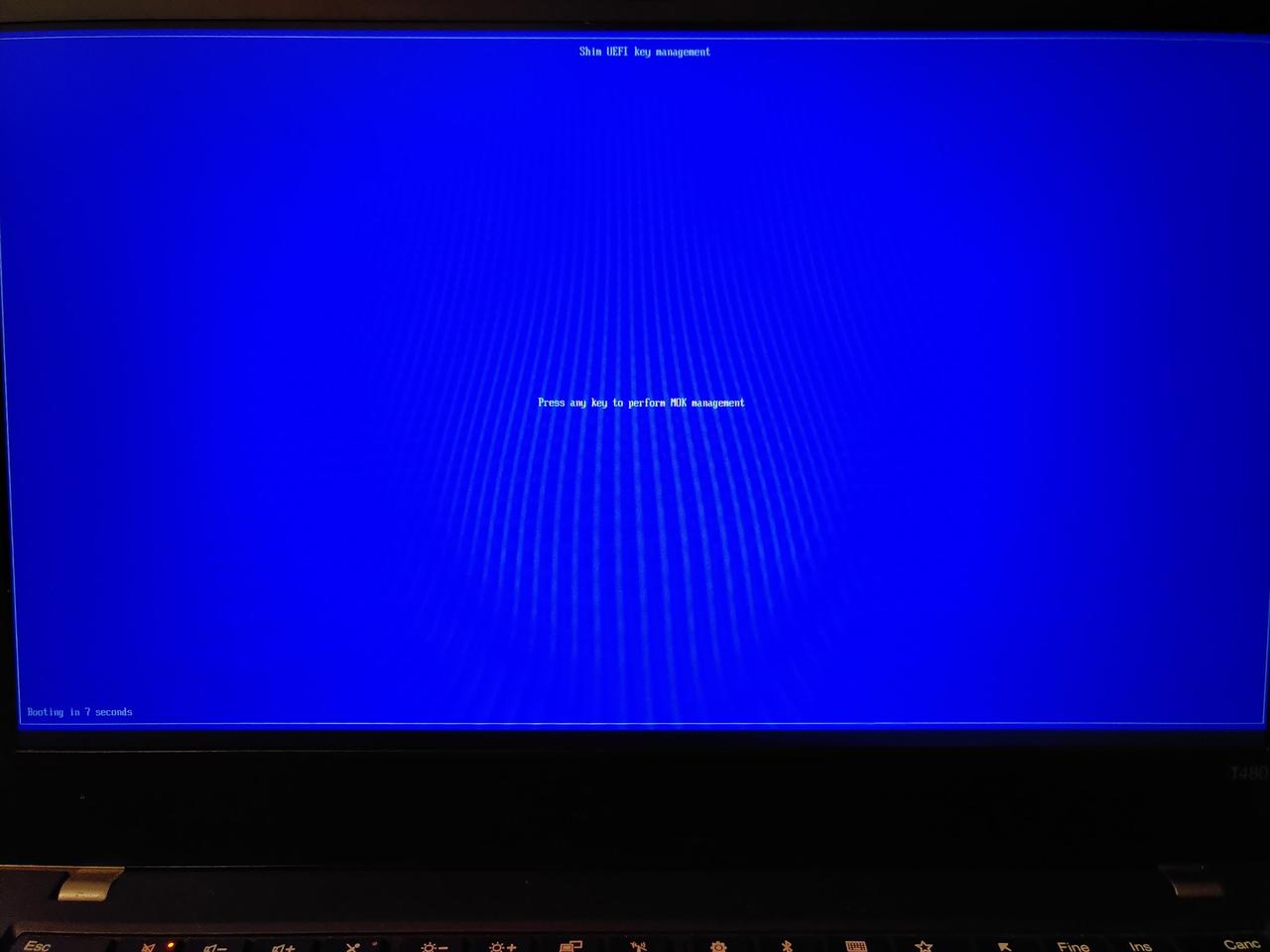
You can now reboot your machine. Upon the next reboot the shim bootloader will notice that you tried to enroll a new key and load the Shim UEFI key management executable. It will look like this (I apologize for the horrible Moiré artifacts on the pictures):
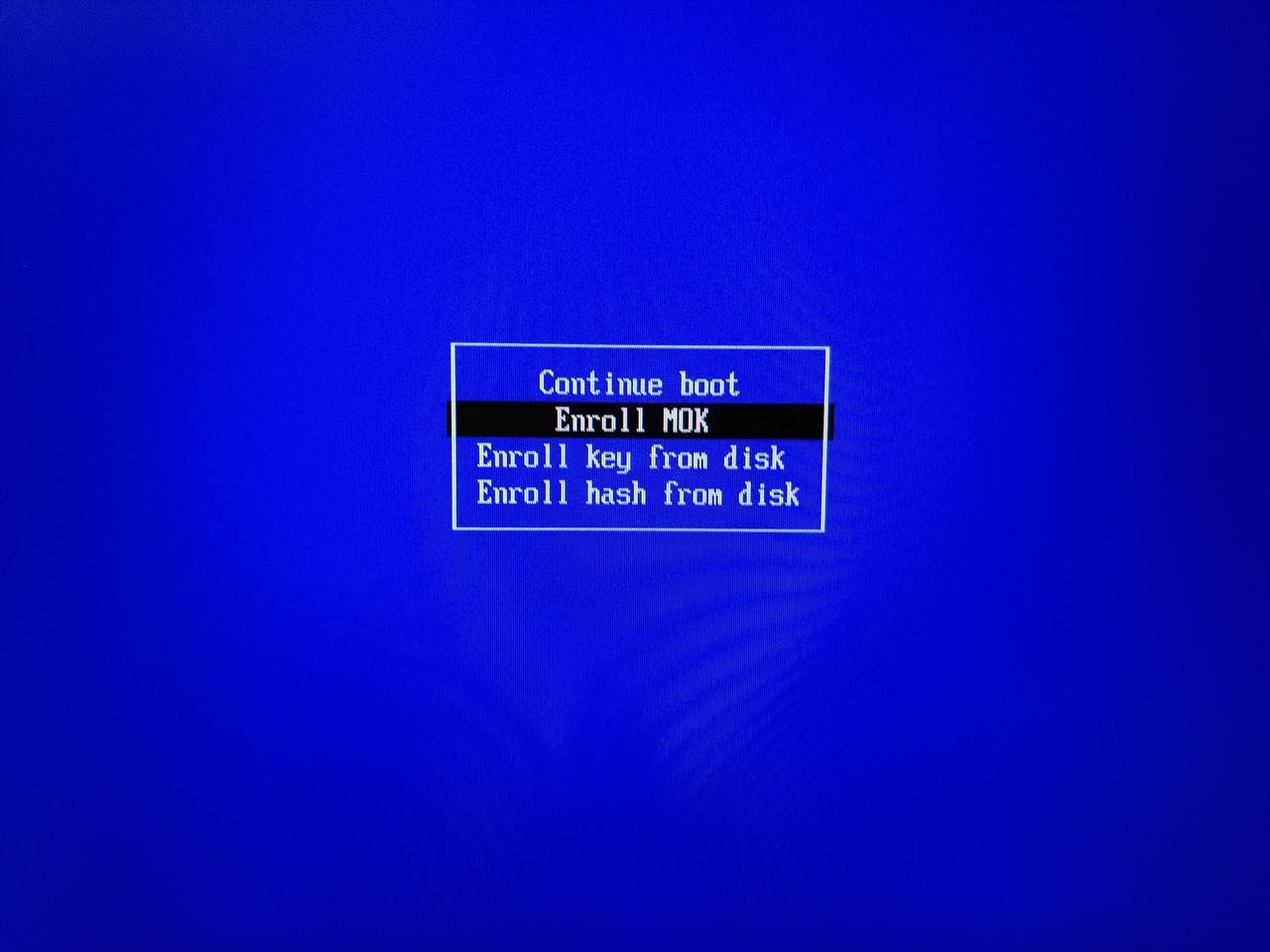
After pressing a key you'll be presented with the key management menu, choose the Enroll MOK entry:
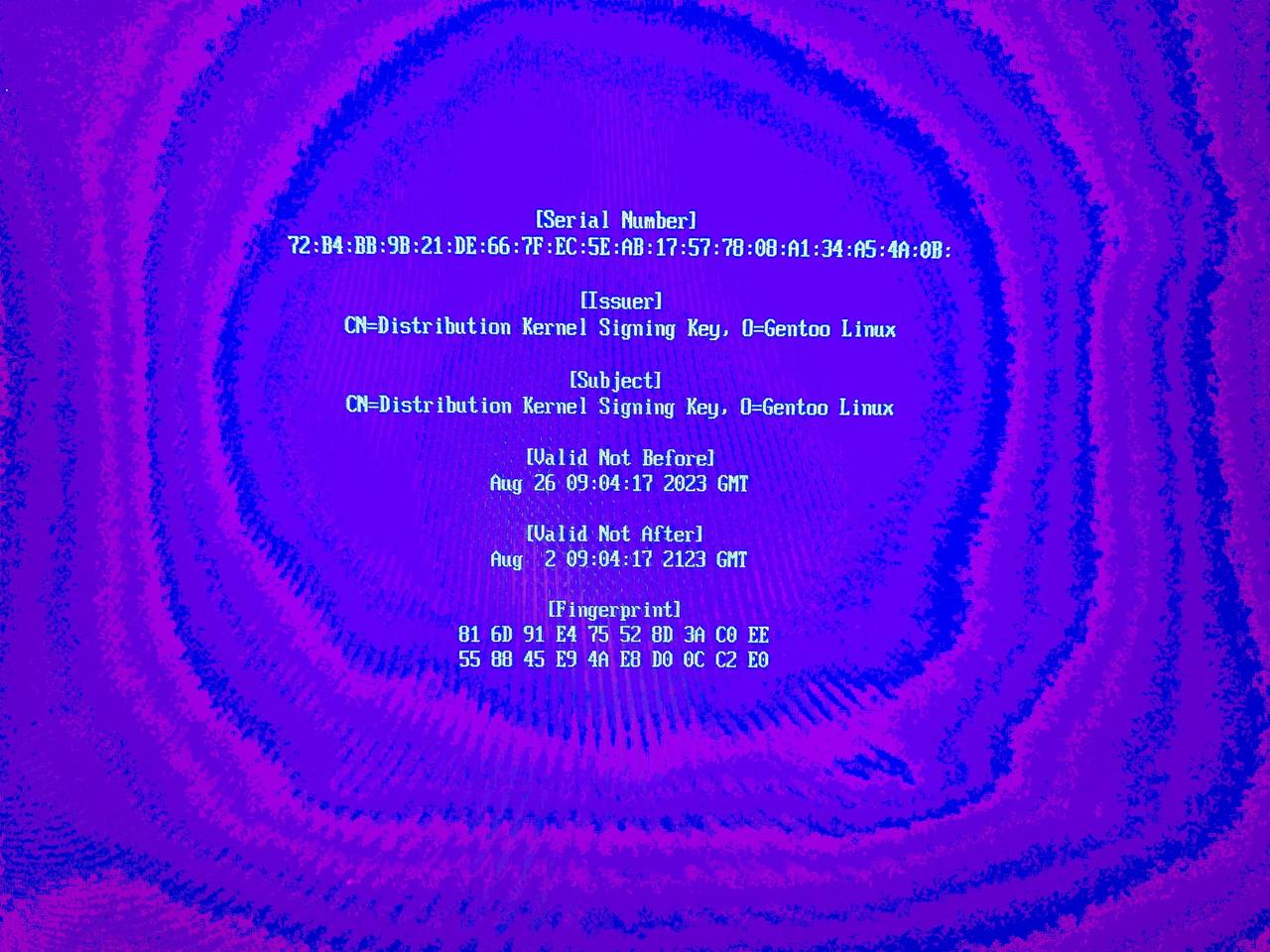
You will presented with the list of keys you enrolled. One if you only added yours or two if you also added the Gentoo kernel distribution key. You can view the keys to ensure they're what you expect:

Here's the information about the selected key:
Once you've verified you're enrolling the proper keys choose Continue:

You will be asked if you want to enroll the key(s), choose Yes:

You will now be asked for the password you used when you enrolled the key using mokutil. Input the password, you won't need it anymore once this is done:

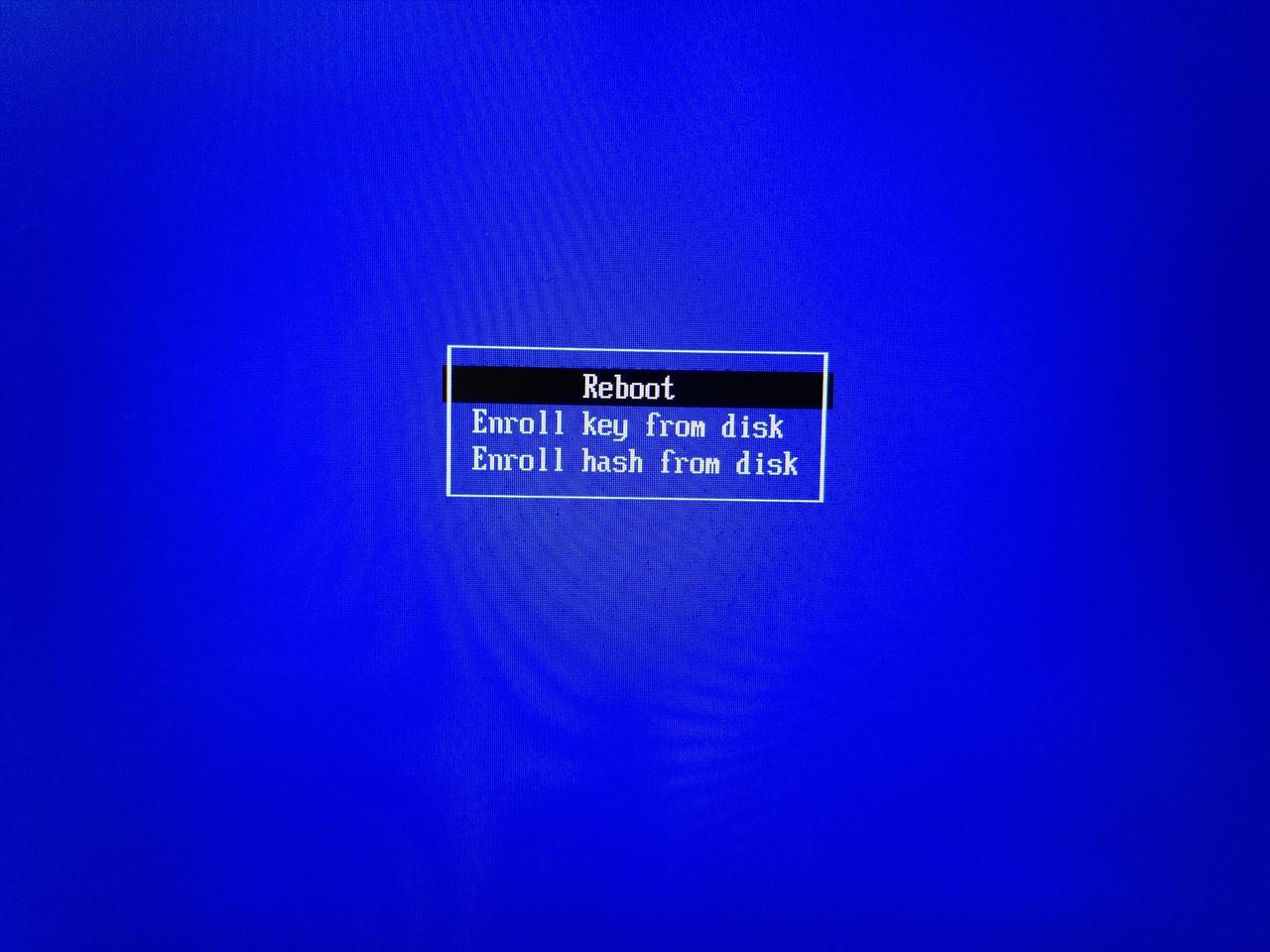
Once you've entered the password it's time to reboot:
Conclusion
You're done! Your machine should now reboot using the shim bootloader which will in turn load GRUB. If you had other operating systems such as Windows these should appear in the menu, as well as other UEFI executables like memtest86+ for example. Booting any of the entries should work and provide a validated boot chain. Once you've booted back into Gentoo you can always verify that this is the case by using mokutil again:
# mokutil --sb-state
SecureBoot enabled
Updating and troubleshooting
You might wonder about how to deal updates to the packages we've used when setting everything up. Here's how.
Kernel updates
If you've setup the GRUB_CFG configuration variable as described above then
the grub.cfg file will be regenerated automatically every time you install
a new kernel (or remove one with eclean-kernel). Otherwise you'll have to
regenerate the grub.cfg file by hand and place it alongside the GRUB and
shim executables.
GRUB updates
When the sys-boot/grub package is updated you should update your
installation and re-create the configuration file. Note that your system will
keep booting correctly even if you don't, but you'll be running an outdated
bootloader:
# cp /usr/lib/grub/grub-x86_64.efi.signed /boot/efi/EFI/gentoo/grubx64.efi
# grub-mkconfig -o /boot/efi/EFI/gentoo/grub.cfg
It is also possible to automatically update GRUB using a post-installation
hook. By using the script below both the GRUB EFI executable and the
configuration file will be automatically replaced whenever you update or
re-install the sys-boot/grub package. Beware however that if something goes
wrong this might make your machine unbootable and you'll have to fix it by
hand. It's not a big risk but it's worth mentioning it.
Anyway, let's add the appropriate directories to your portage profile if they're not already there yet:
# mkdir --parents /etc/portage/profile/bashrc /etc/portage/profile/package.bashrc
Now we'll add a script in your portage profile that will execute the steps
needed to update the GRUB EFI executable. Copy the following script into
/etc/portage/profile/bashrc/grubinstall:
post_pkg_postinst() {
    ebegin "Backing up the GRUB bootloader to /boot/efi/EFI/gentoo/grubx64.efi~"
    mv "/boot/efi/EFI/gentoo/grubx64.efi" "/boot/efi/EFI/gentoo/grubx64.efi~"
    eend $?

    ebegin "Backing up the GRUB configuration to /boot/efi/EFI/gentoo/grub.cfg~"
    mv "/boot/efi/EFI/gentoo/grub.cfg" "/boot/efi/EFI/gentoo/grub.cfg~"
    eend $?

    ebegin "Installing the GRUB bootloader to /boot/efi/EFI/gentoo/grubx64.efi"
    cp "/usr/lib/grub/grub-x86_64.efi.signed" "/boot/efi/EFI/gentoo/grubx64.efi"
    eend $?

    ebegin "Generating a new GRUB configuration file"
    grub-mkconfig -o "/boot/efi/EFI/gentoo/grub.cfg"
    eend $?
}
Note that the script contains only one function called post_pkg_postinst(),
it's a hook that portage will run after having installed a package. So now we
have to instruct portage to run this script every time the sys-boot/grub
package is installed:
# echo "sys-boot/grub grubinstall" > /etc/portage/profile/package.bashrc/grub
And you're done.
shim bootloader updates & troubleshooting
If the sys-boot/shim package is updated it is highly recommended to also
update your installation. Failing to do so might lead to an unbootable system,
as older versions of the package are progressively marked as unsafe, and new
UEFI firmwares will refuse to boot them. To update the shim bootloader
first update the package then manually copy the new version to the EFI
partition:
# cp /usr/share/shim/mmx64.efi /boot/efi/EFI/gentoo/
# cp /usr/share/shim/BOOTX64.EFI /boot/efi/EFI/gentoo/
In particular you'll have to update the shim bootloader if you get a boot failure with the following error message:
Verifying shim SBAT data failed: security policy violation
You won't be able to boot with the existing bootloader and you'll have to either temporarily disable Secure Boot or boot with another bootloader to fix the issue. Updating shim will solve the problem.
shim can be updated automatically using the same approach described above
for GRUB. Copy the following script to /etc/portage/profile/bashrc/shiminstall
post_pkg_postinst() {
    ebegin "Copying /usr/share/shim/BOOTX64.EFI to /boot/efi/EFI/gentoo/BOOTX64.EFI"
    cp /usr/share/shim/BOOTX64.EFI /boot/efi/EFI/gentoo/BOOTX64.EFI
    eend $?

    ebegin "Copying /usr/share/shim/mmx64.efi to /boot/efi/EFI/gentoo/mmx64.efi"
    cp /usr/share/shim/mmx64.efi /boot/efi/EFI/gentoo/mmx64.efi
    eend $?
}
And configure portage to run this script every time the sys-boot/shim
package is installed or updated:
# echo "sys-boot/shim shiminstall" > /etc/portage/profile/package.bashrc/shim
Windows dual-boot troubleshooting
Gentoo currently ships two versions of shim: 15.8 and 16.1. Dual-booting Windows using the old version works fine but fails with the new one due to an upstream bug in GRUB.
At the time of writing Gentoo's GRUB package (sys-boot/grub-2.14-r5) does
not contain a fix, but it is possible to patch it to fix the issue by using two
patches shipped with Debian's GRUB package. You'll need to place both patches
under /etc/portage/patches/sys-boot/grub and rebuild the package:
# mkdir --parents /etc/portage/patches/sys-boot/grub
# wget -P /etc/portage/patches/sys-boot/grub \
    https://salsa.debian.org/grub-team/grub/-/raw/9cbf984566f08c7b7dc9b5fb26aacec22cdde891/debian/patches/upstream/efi-linux-set-loaded-image-device-path.patch \
    https://salsa.debian.org/grub-team/grub/-/raw/9cbf984566f08c7b7dc9b5fb26aacec22cdde891/debian/patches/upstream/efi-chainloader-set-loaded-image-device-path.patch
# emerge --oneshot sys-boot/grub
motherboard UEFI firmware updates & troubleshooting
Updating the motherboard UEFI firmware sometimes clears the MOK list. If that's the case your system will fail to boot and you will have to enroll your key again. Follow the steps in Reboot & enrolling the key in the MOK list to enroll your key once more. Also re-enroll Gentoo's signing key if you're using a pre-built kernel.
Similarly sometimes the UEFI boot list will be cleared, removing the shim boot entry. If it happens repeat the steps in Creating a new EFI boot entry to create a new one.